
How I use the Claude Code Extension with a $10/month model

I’m sorry to break it to you, but you still have to pay for a subscription.
This is not a hack to start using Claude Code for free.
But I found a simple tweak that lets you get the same experience of using the Claude Code extension on VS Code, while using a cheaper model (some cost $10/month).
Most tutorials teach you how to add a cheaper LLM into the Terminal, but for non-coders like me, I still prefer using the VS Code extension.


So after spending days trying to find a good alternative:
Here’s how I’m using a $10/month LLM while getting the same Claude Code extension experience on VS Code:
Why even use the Claude Code extension?
Call me a creature of habit, but I enjoy the Claude Code experience more than any other LLM chatbox, primarily because I can type out my chats in the central pane.
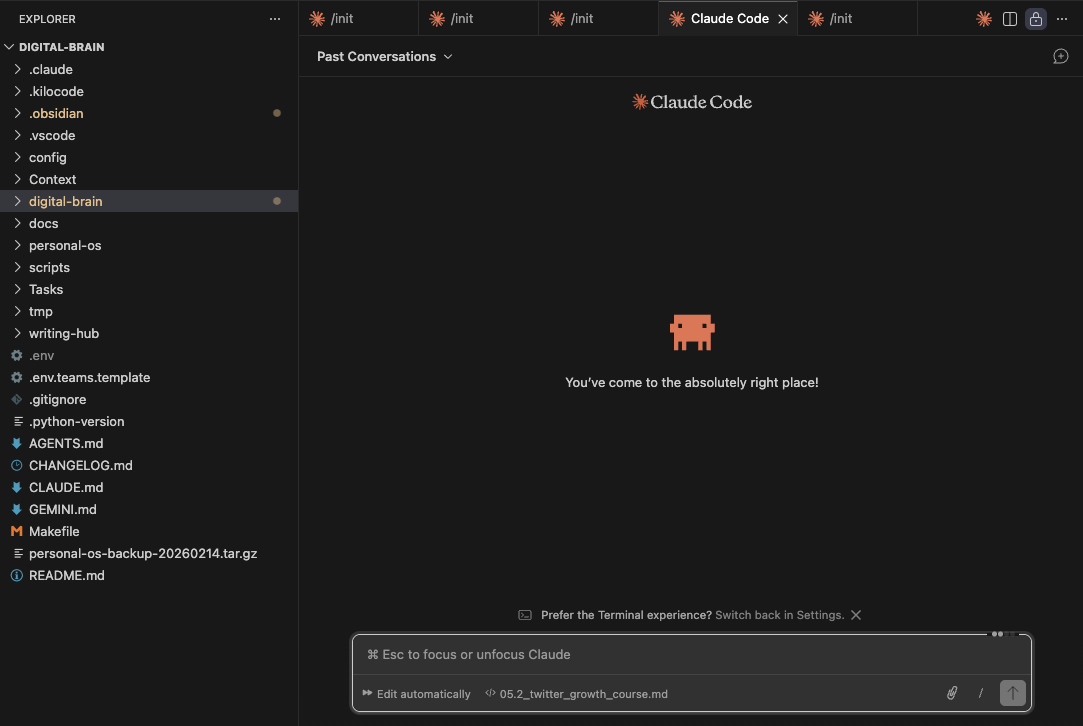
Other chatboxes are only available as a side pane, which I don’t enjoy, while others focus on coding tasks instead of being a general-purpose one.
Ever since building out my High-Signal Digital Brain with Claude Code and Obsidian, I’m too used to the user flow, but I’ve realised how costly the Claude Pro plan can be.
Especially with the low rate limits that I’d frequently hit in the 5-hour window.
I don’t want to be locked into the Claude ecosystem, and I want to have the flexibility of switching between models and subscriptions.
So after finding this tip on using cheaper models with Claude Code, it finally gave me more clarity:
How you can use another LLM for Claude Code
Claude Code is actually compatible with other models.
So while you get the same Claude Code experience on the terminal or VS Code extension:
You’re using a cheaper LLM to run the same tasks with higher rate limits.
It’s all thanks to more models that are now compatible with Anthropic’s API, so you can call another model to run requests within Claude Code.
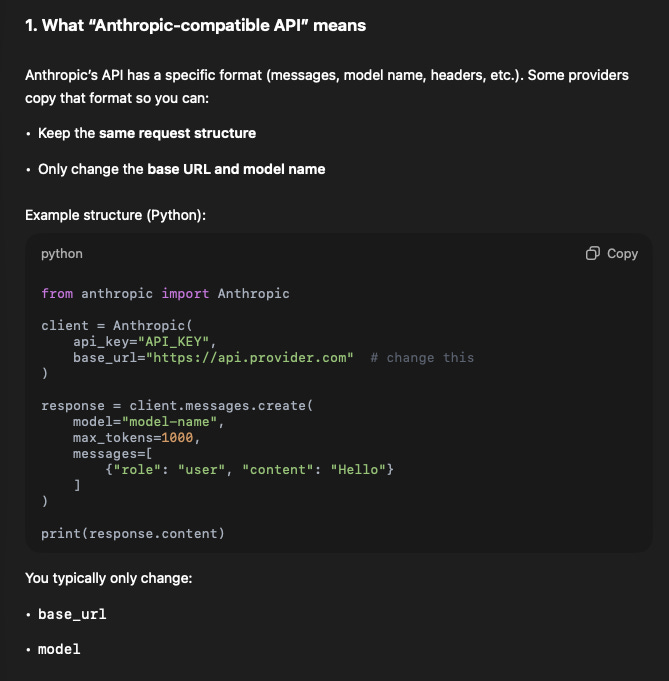
So we have to find these models that are cheaper and compatible with the Anthropic endpoint:
Finding the right LLM
For this to work fully, we need to find a model that:
Is compatible with the Anthropic endpoint
Offers API key generation with the paid plan
It’s also possible to use a main API endpoint, but I find that it burns through tokens very easily (so I prefer using a paid plan).
These are some options that I considered:
@MiniMax_AI M2.5 Starter: $10/month
@Kimi_Moonshot 2.5 Moderato: $19/month
@Zai_org GLM-5/4.7 Lite Coding Plan: $10/month
As shared in my OpenClaw setup guide, I decided to go with Z.AI’s GLM Lite Coding plan because there’s no tax charges (like MiniMax), and I could use PayPal for my payments.
All of them work the same way:
Sign up for their coding plans
Generate an API key from the dashboard
Add that API key to VS Code
In my case, I generated an API key on the Z.AI dashboard,
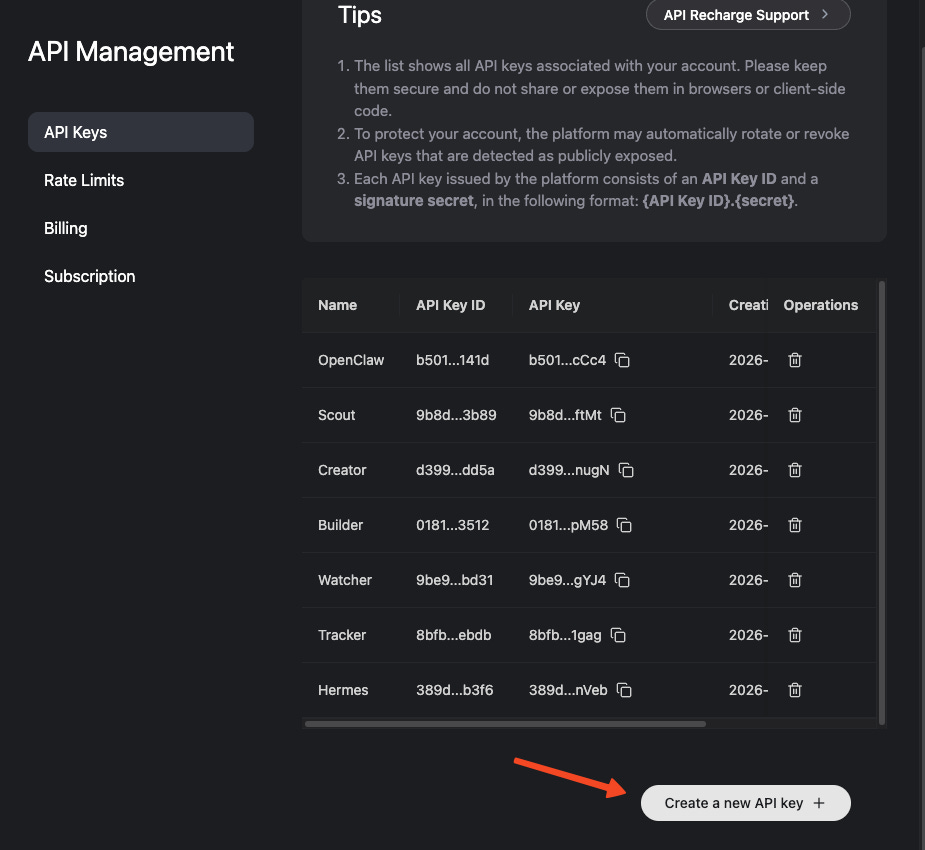
and used that API key to connect with Claude Code.
Most of the tutorials only share how to add their API key and use Claude Code in the terminal, and not the extension.
So here’s how I did it for my GLM-4.7 plan:
Adding the API to the VS Code Extension
I followed MiniMax’s guide to add GLM-4.7 as my preferred model on Claude Code.
While their guide is only for MiniMax models, we can expand it towards any Anthropic-compatible endpoint:
Install the VS Code Extension
Go to the Extensions tab, search for Claude Code and install it
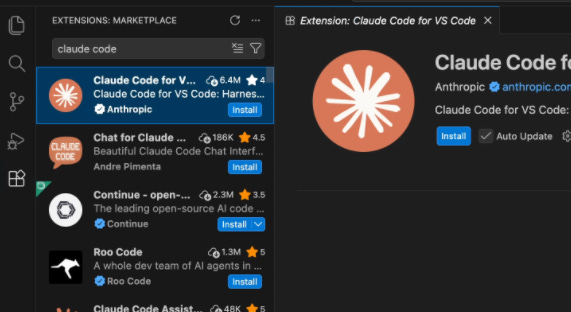
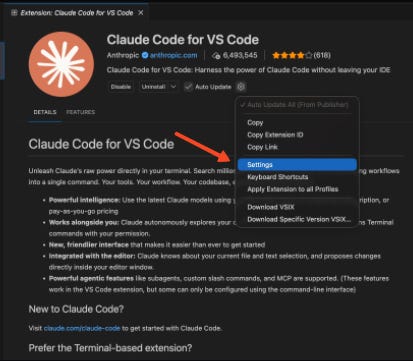
Open Settings in the Extension
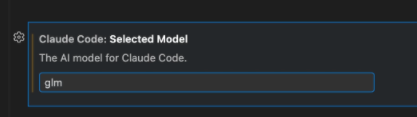
Type out your model under ‘Selected Model’
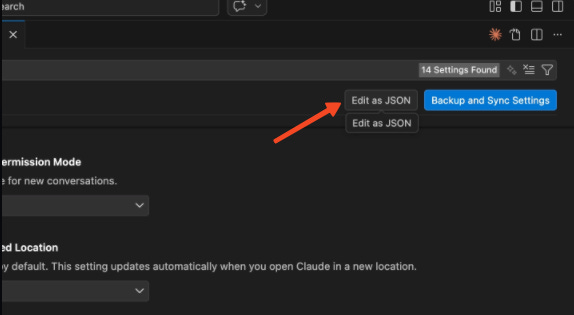
Click on ‘Edit as JSON’
Edit the JSON file to configure your API endpoint
This is the most challenging part for non-coders like me.
You should already see these two variables inside of the JSON:
{
  "claudeCode.preferredLocation": "panel",
  "claudeCode.selectedModel": "glm-4.7"
}
So now, we need to add one more variable inside like this:
{
  "claudeCode.preferredLocation": "panel",
  "claudeCode.selectedModel": "glm-4.7",
  "claudeCode.environmentVariables": []
}
We’ll expand out the variables to include this inside:
"claudeCode.environmentVariables": [
        {
            "name": "ANTHROPIC_BASE_URL",
        "value": "<PROVIDER_BASE_URL>"
        },
        {
            "name": "ANTHROPIC_AUTH_TOKEN",
            "value": "<LLM_API_KEY>"
        },
        {
            "name": "API_TIMEOUT_MS",
            "value": "3000000"
        },
        {
            "name": "CLAUDE_CODE_DISABLE_NONESSENTIAL_TRAFFIC",
            "value": "1"
        },
        {
            "name": "ANTHROPIC_MODEL",
            "value": "<MAIN_MODEL_NAME>"
        },
        {
            "name": "ANTHROPIC_SMALL_FAST_MODEL",
            "value": "<FAST_MODEL_NAME>"
        },
        {
            "name": "ANTHROPIC_DEFAULT_SONNET_MODEL",
            "value": "<MAIN_MODEL_NAME>"
        },
        {
            "name": "ANTHROPIC_DEFAULT_OPUS_MODEL",
            "value": "<BEST_MODEL_NAME>"
        },
        {
            "name": "ANTHROPIC_DEFAULT_HAIKU_MODEL",
            "value": "<FAST_MODEL_NAME>"
        }
    ],
I’ve left them as environment variables, but you’ll need to make edits to them (and remove the <> brackets too):
Provider Base URL (for my case, it’s https://api.z.ai/api/anthropic, but it will differ based on the provider you choose)
LLM API Key: This is the key that you generated from your plan, keep it safe as anyone can access your plan once they get access to it
Anthropic Model: This depends on what model you’re using (I’ll put it as glm-4.7)
If you’re familiar with the Anthropic model family, there are 3 types:
Opus: Most powerful, but most expensive
Sonnet: Great for most tasks, mid-tier in costs
Haiku: Fast and cheap, but not as capable as the others
So it’s good if you want to customise your model routing so you get to use the cheaper models for lightweight tasks (and reduce your token burn):
ANTHROPIC_DEFAULT_HAIKU_MODEL: Choose the cheapest model (e.g. GLM-4.7-Flash)
ANTHROPIC_DEFAULT_SONNET_MODEL: Choose the mid-tier model (e.g. GLM-4.7)
ANTHROPIC_DEFAULT_OPUS_MODEL: Choose the high-end model (e.g. GLM-5)
This depends on the model provider that you’re using (let me know in the comments if you need help). But if you prefer to just use one model across endpoints, it’s possible to do that too.
By setting everything as your main model (e.g. glm-4.7).
So this is how I’d fill up my JSON for my GLM-4.7 plan:
{
  "claudeCode.preferredLocation": "panel",
  "claudeCode.selectedModel": "glm-4.7",
  "claudeCode.environmentVariables": [
        {
            "name": "ANTHROPIC_BASE_URL",
        "value": "https://api.z.ai/api/anthropic"
        },
        {
            "name": "ANTHROPIC_AUTH_TOKEN",
            "value": "XXXXX1234567"
        },
        {
            "name": "API_TIMEOUT_MS",
            "value": "3000000"
        },
        {
            "name": "CLAUDE_CODE_DISABLE_NONESSENTIAL_TRAFFIC",
            "value": "1"
        },
        {
            "name": "ANTHROPIC_MODEL",
            "value": "glm-4.7"
        },
        {
            "name": "ANTHROPIC_SMALL_FAST_MODEL",
            "value": "glm-4.7-flash"
        },
        {
            "name": "ANTHROPIC_DEFAULT_SONNET_MODEL",
            "value": "glm-4.7"
        },
        {
            "name": "ANTHROPIC_DEFAULT_OPUS_MODEL",
            "value": "glm-4.7"
        },
        {
            "name": "ANTHROPIC_DEFAULT_HAIKU_MODEL",
            "value": "glm-4.7-flash"
        }
    ],
}
Just an FYI, I’m not revealing my real API key here.
If you’re unsure if your JSON is configured correctly, you could always plug it into any LLM and ask it to review and make changes (if necessary)
Test the model
After editing the JSON, you can close the window and save the changes.
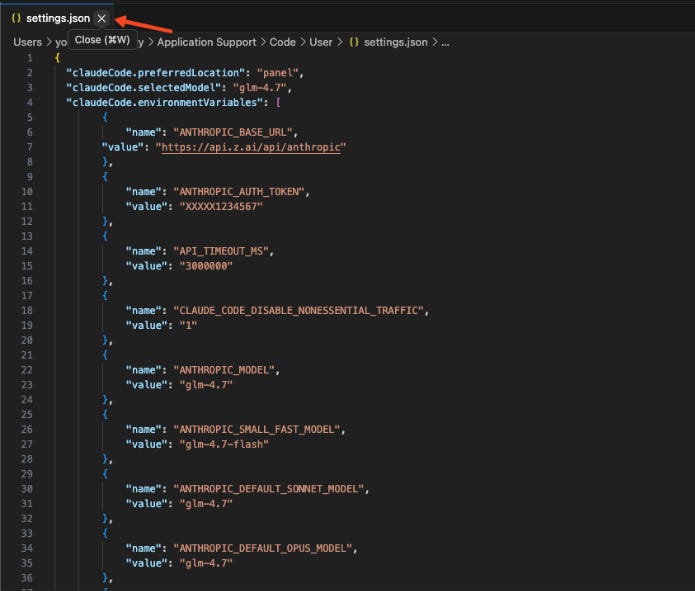
Now, we can start testing out if the connection works.
On any window, we can click on the Claude icon (you can go back to the Extensions tab to find this icon if all of your windows are closed),
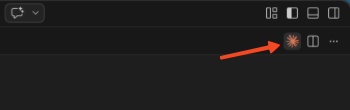
and the chat should load.
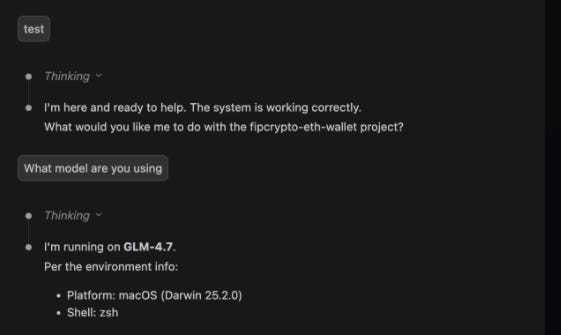
I did a test and asked what model they’re using, and it gave this output (which shows that it works).
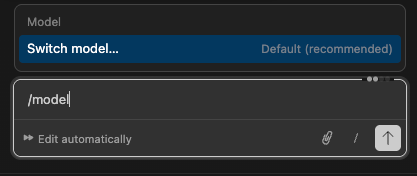
If you want to switch between models, use the /model slash command.
While they show the defaults like Opus/Sonnet/Haiku, they’re routed to the model that you configured in the JSON above.
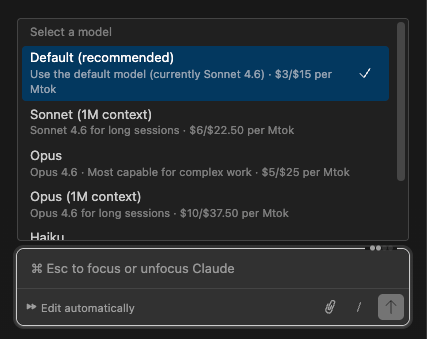
And this is exactly how you can use any cheaper Anthropic-compatible LLM with Claude Code on the VS Code extension.
The setup is tedious, but worth it
The most painful part of this entire setup is editing the JSON.
While it takes some time to understand how JSON works for non-coders (like me), I can just throw it into ChatGPT to help me configure the file correctly.
I feel it’s worth the hassle because now you’re able to:
Switch between any model for which you have a subscription
Avoid being locked into the Claude ecosystem
Have the same Claude Code UI experience while at a lower cost
This is the foundation of my High-Signal Digital Brain, where I’ve built out a personal OS with Obsidian + Claude Code (while using a cheaper model) that never forgets any of your context and can does the repetitive onchain and social work for me.
If you have any questions on the steps above, feel free to let me know in the comments and I’ll help you out.
Feel free to use my referral link for Z.AI’s GLM plans here (get 10% off your first order).
AI doesn’t have to be overwhelming.
I was an AI skeptic and thought that it would never work for me. But after playing with it for 2 months straight, I’ve built out repeatable workflows that save me from doing soul-sucking tasks that I hate.
If you want to learn how to add AI to your workflows in a way that works for you (instead of yet another influencer template), fill up the form below.
I’ll reach out to you for more information if you’re a fit: